

How to sign up as MYKOKU Academy?
MYKOKU Official



Sign Up As MYKOKU Academy Account
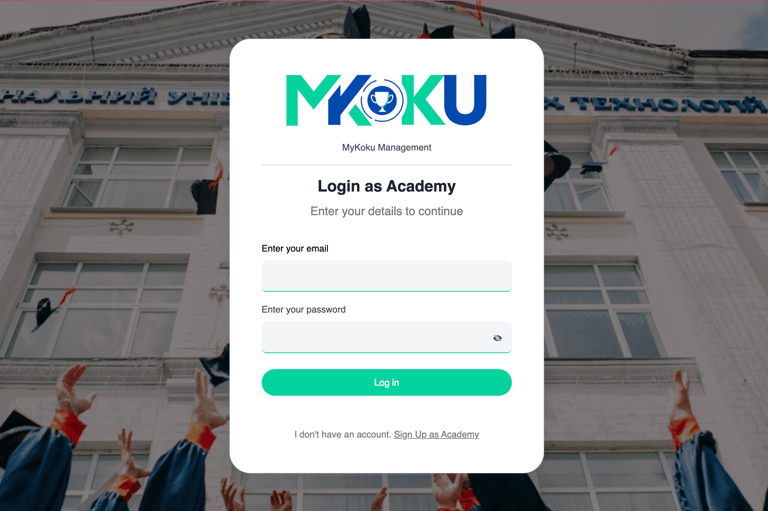
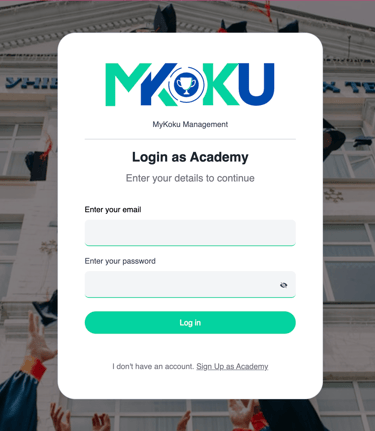
1. Click mykoku.mykokurikulum.com go to Academy Landing Page
2. Then tap on Academy Option
3. Select Sign Up as Academy to register a new account
4. Key in your Emai & Click Get OTP
5. Follow the process to complete Registration
6. Go to User Setting & Complete your profile
Add Coach in MYKOKU Academy
1. Tap on the sidebar to go to the Coach Page
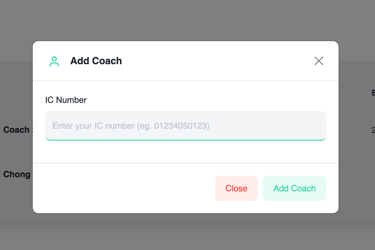
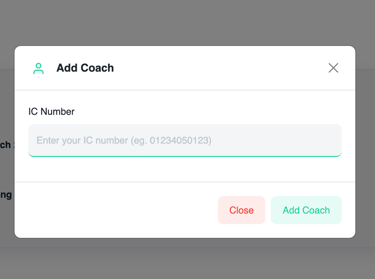
2. Tap on Add Coach
3. Fill in Coach IC Number
4. Click Add Coach Assign seccess into your academy
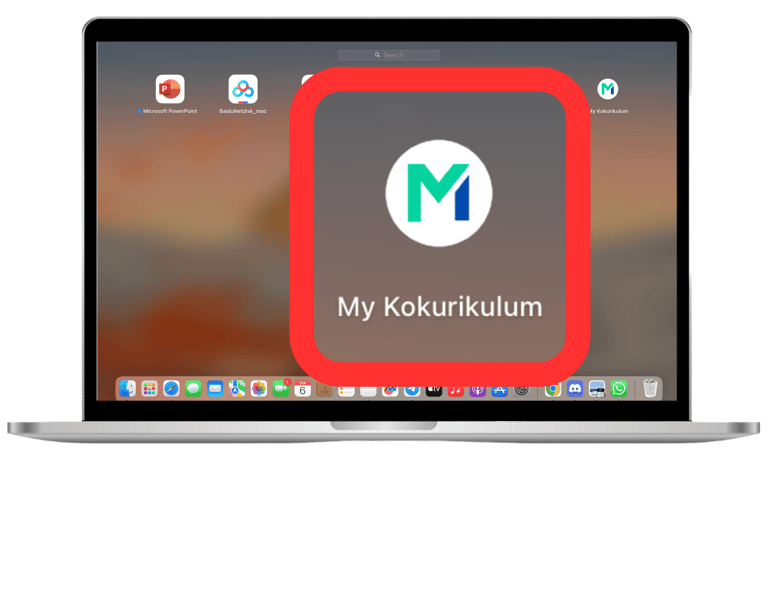
Add to home screen MYKOKU School Web
1. Click the 「More」icon (three dots) in the top right corner.
2. Tap on 「Cast, save and share」
3. And select「Install page as an app」in the drop-down
4. Click 「Install」to complete and use MYKOKU from your home screen
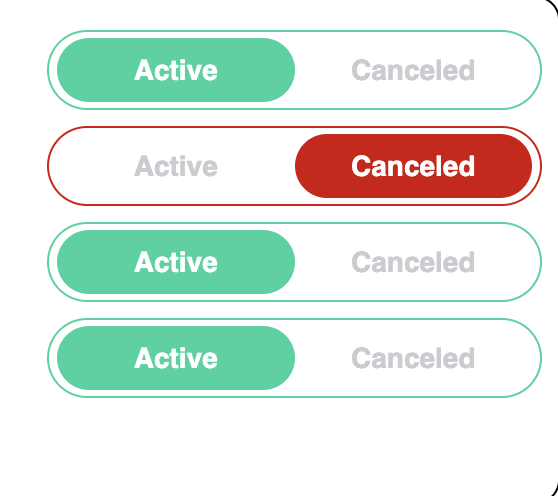
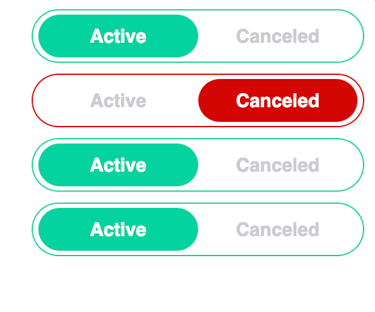
Cancel Class in MYKOKU Academy Calendar
1. Tap on the sidebar to go to the Schedule
2. Confirm the Course Information for the day (within 7 days)
3. Click Active button to cancel
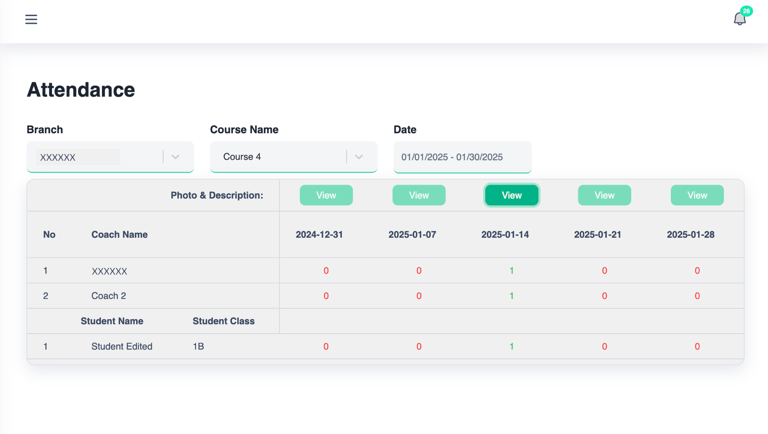
Check Class Attendance in MYKOKU Academy
1. Tap on the sidebar to go to the Attendance
2. Select the "Branch & Course & Period" you want to view
3. Click View button to view more class detail
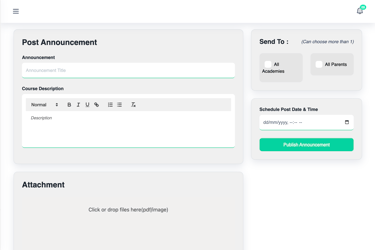
Post Annountment in MYKOKU Academy
1. Tap on the sidebar to go to the Announcement Page
2. Tap on Add Announcement
3. Fill in Announcement Details & Select Recipients & Post Date
4. Click Publish Announcement to all recipient.
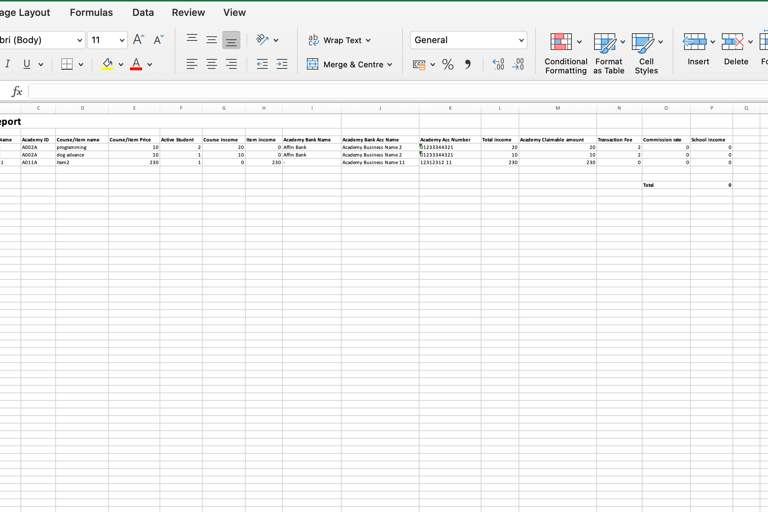
Download Finance Report in MYKOKU Aacademy
1. Tap on the sidebar to go to the Finance Page
2. Select the report day on Finance & Report
3. Click the Download button
4. Open the Finance Report file on your computer
Add Event on Academy Calendar
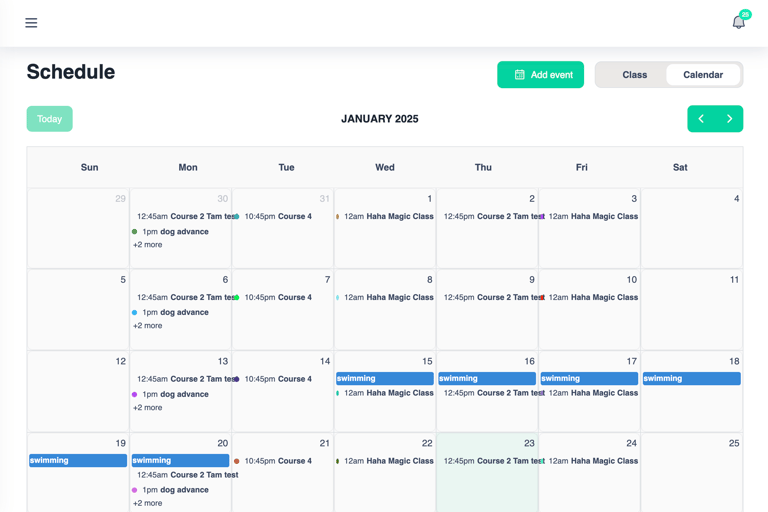
1. Tap on the sidebar to go to the Schedule Page
2. Tap on Add Event
3. Fill in Event Detail
4. Click Publish Event announced to Participants
MYKOKU
Let us handle the paperwork,
you can focus on students.
Support
Contact
mykoku@mykokurikulum.com
+6011-3777 1413
© 2025. All rights reserved.