

How to sign up as MYKOKU Coach ?
MYKOKU User Guide: Save educators’ time & teaching classes can finally be easy!!!
GET STARTED
1/20/20251 min read



Sign Up As MYKOKU Coach Account
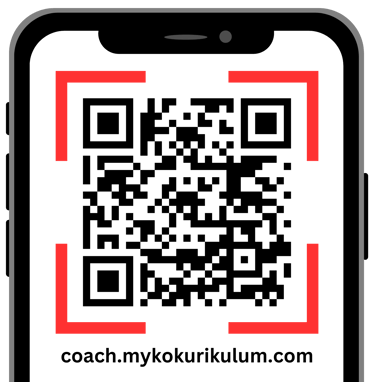
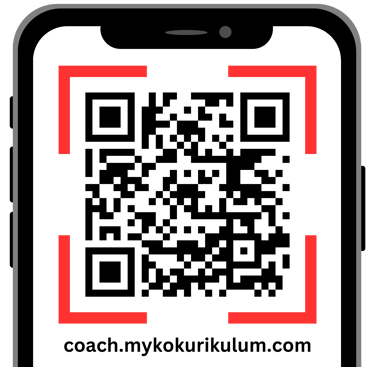
1. Scan this QR or click parent.mykokurikulum.com and go to Coach Login Web Page
2. Then tap on Register
3. Follow the process to Complete Registration
4. Tap on Menu Button to Complete your profile
Take Attendance In MYKOKU Coach
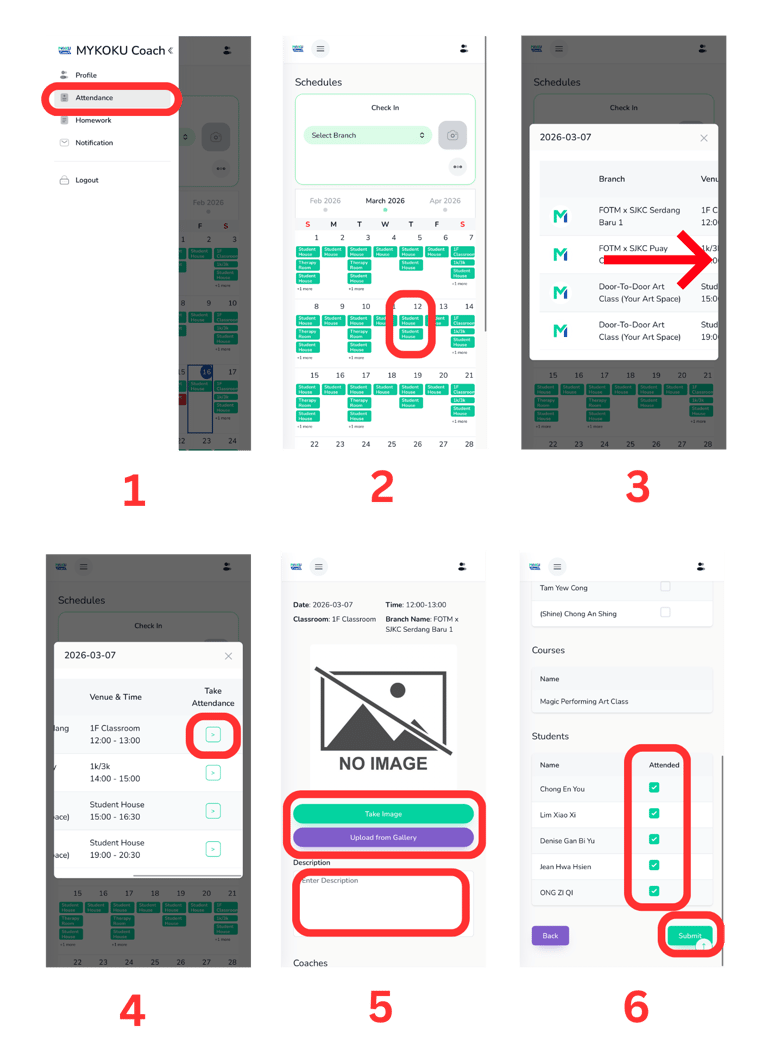
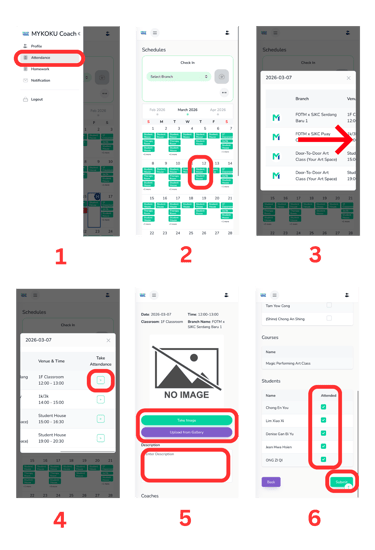
1. Click on the top right「Menu Bar」, Tap the 「Attendance」
2. Select the 「date」, you want to take attendance
3. Scroll to right side.
4. Confirm「Classroom」&「Class Time」and click on the arrow.
5. Upload/ take the classroom photo & write class description.
6. Untick the absent student and Submit.
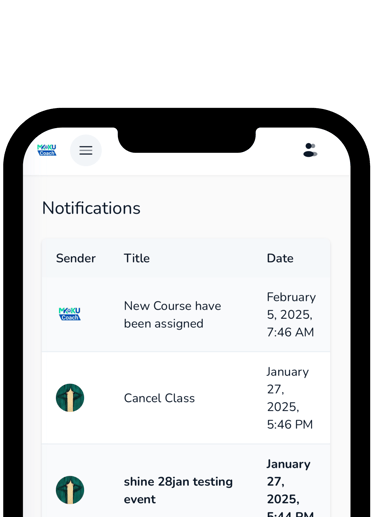
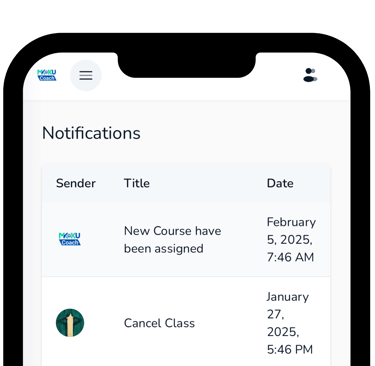
View Latest Update In MYKOKU Coach
1. Tap on the screen「Menu Bar」
2. Tap the 「Notification」
3. Then select the「News」to read the details
Add to home screen MYKOKU Coach Web
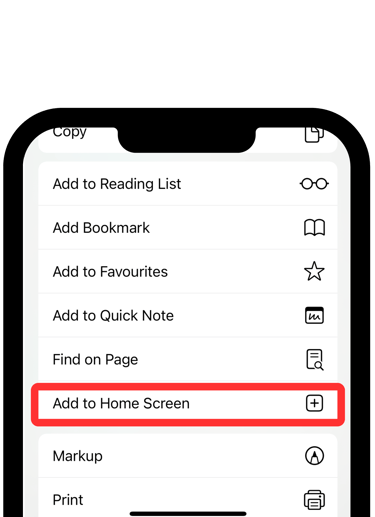
1. Tap on the screen「Menu Bar」
2. Tap the 「Share Button」 (looks like a square with an arrow pointing up)
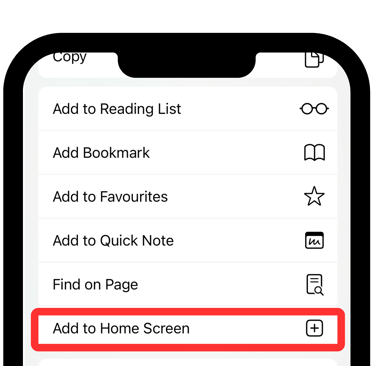
3. Scroll down and select 「Add to Home Screen」
MYKOKU
Let us handle the paperwork,
you can focus on students.
Academy Support
Contact
+6011-3777 1413
© 2025. All rights reserved.
+6011-3565 1413
Parent Support