

MYKOKU School Parent full feature
MYKOKU User Guide: Save parents’ payment time and remind your child of their Co-curricular activities.




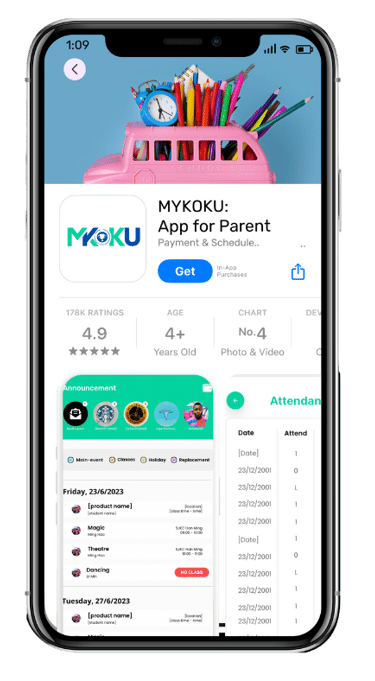
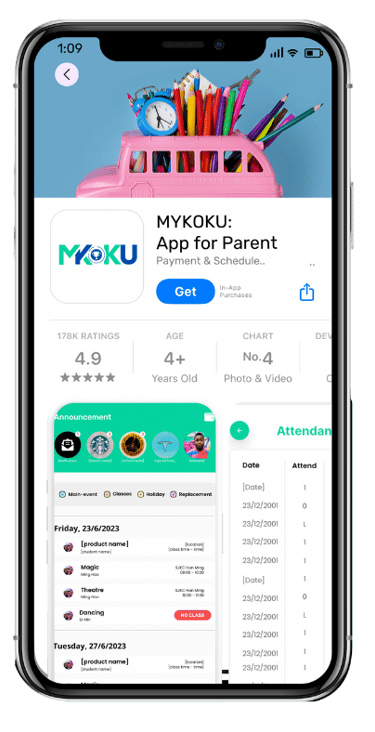


Get started with
the one convenient
for you
WebApp
IOS App
Android App
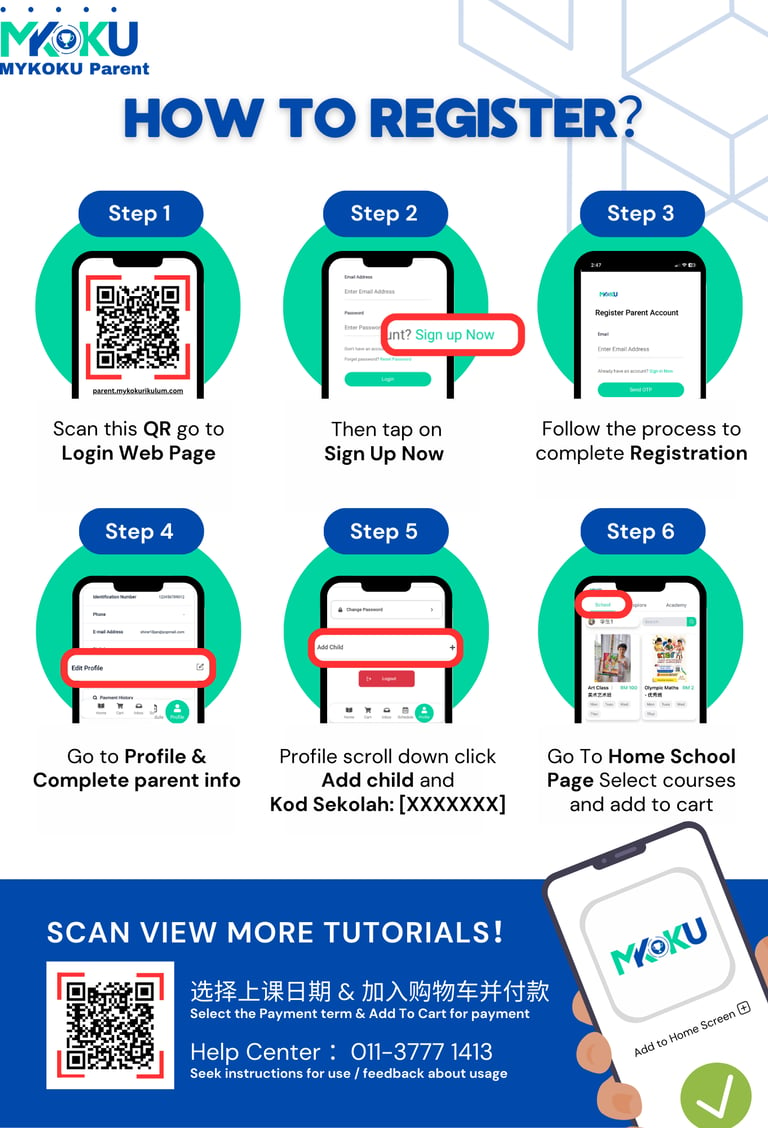
1. Open your MYKOKU Parent APP
2. Then tap on Sign Up Now
3. Follow the process to complete Registration
4. Go to Profile & Complete your profile
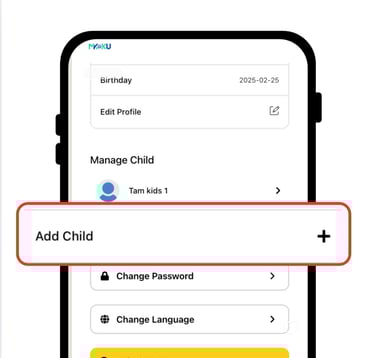
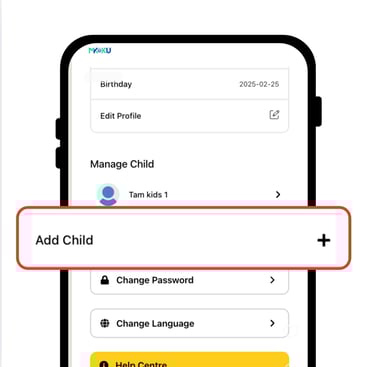
5. Profile scroll down, click Add child to create your child account (Kod Sekolah: [XXXXXXX])
6. Go to Home Page > School, then you will see all talent class in the school.
How to Add Child?
1. Go To Profile Page
2. Click on Add a student
3. Fill in all details & Kod Sekolah
4. Go to Home to view all available courses!
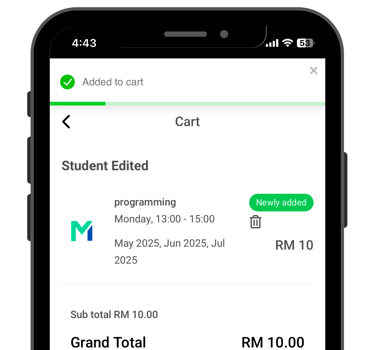
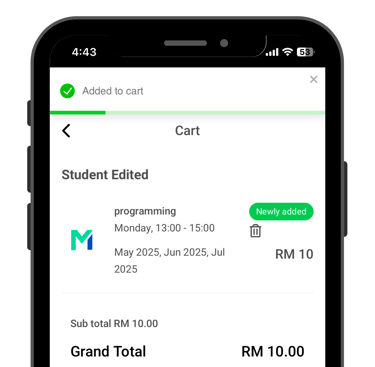
How to Enroll Course for child?
1. Go to the Home Page, School
2. Choose the Course you want
3. Click in the course to "Add to cart" or "Pre-enroll" (If there are not enough students to start the class)
4. Go to "Cart Page" and "Check Out"
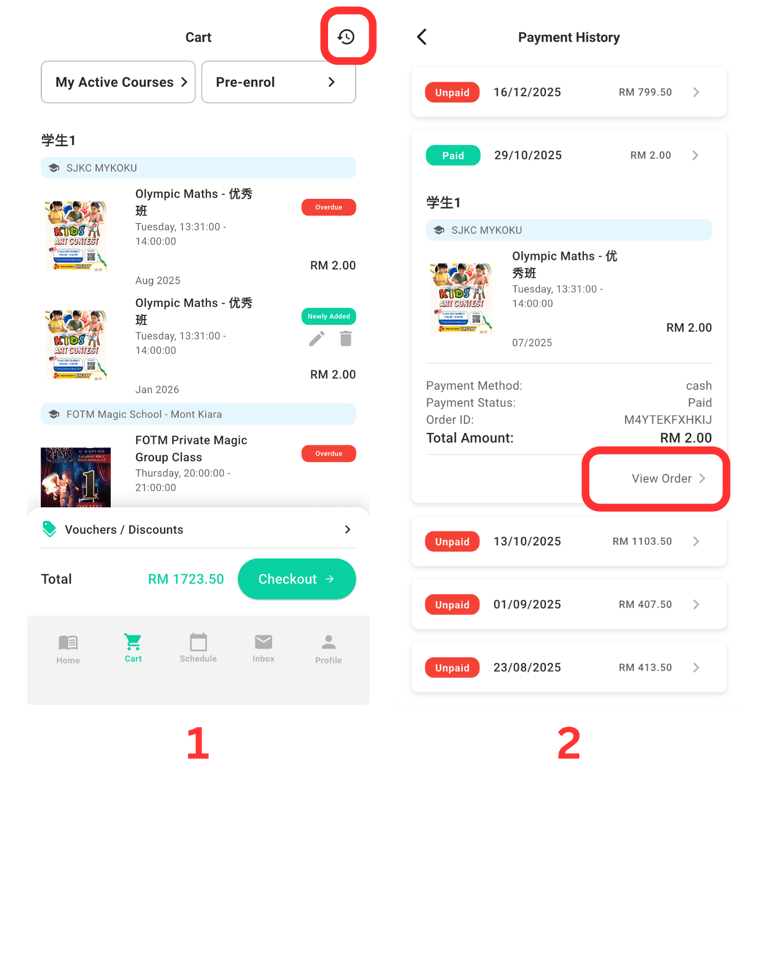
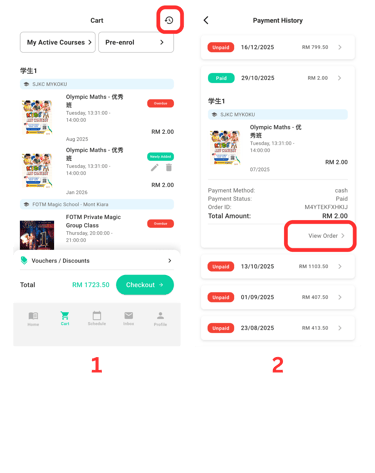
Where to check Paymrnt History ?
1. Go to the Cart Page & Tap on the Right Top button.
2. Click the top right button to view your Payment History & get your receipts.
(Or Complete the payment failed)
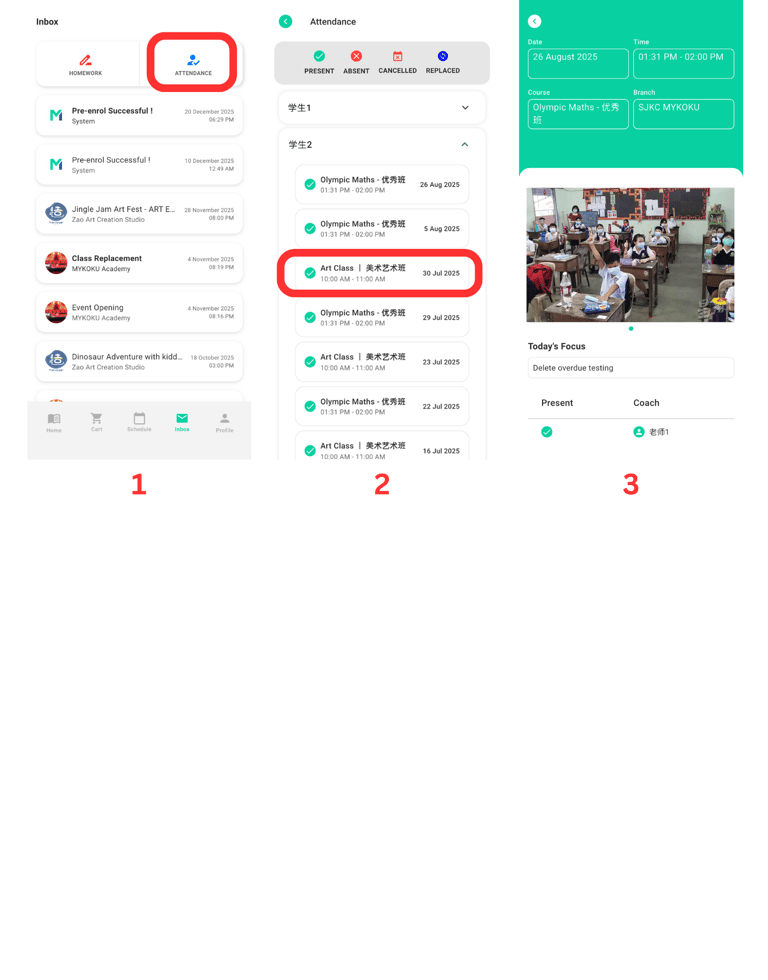
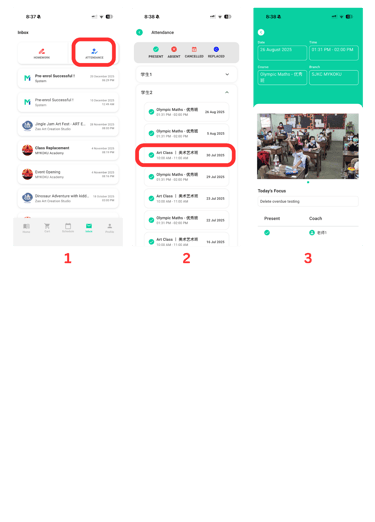
Where to see Classe Photo ?
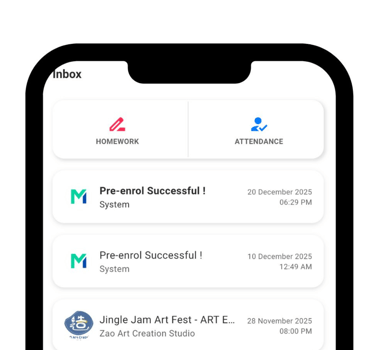
1. Go to the Inbox page & click Attendance.
2. Click the date you want to see.
How many Credits are left?
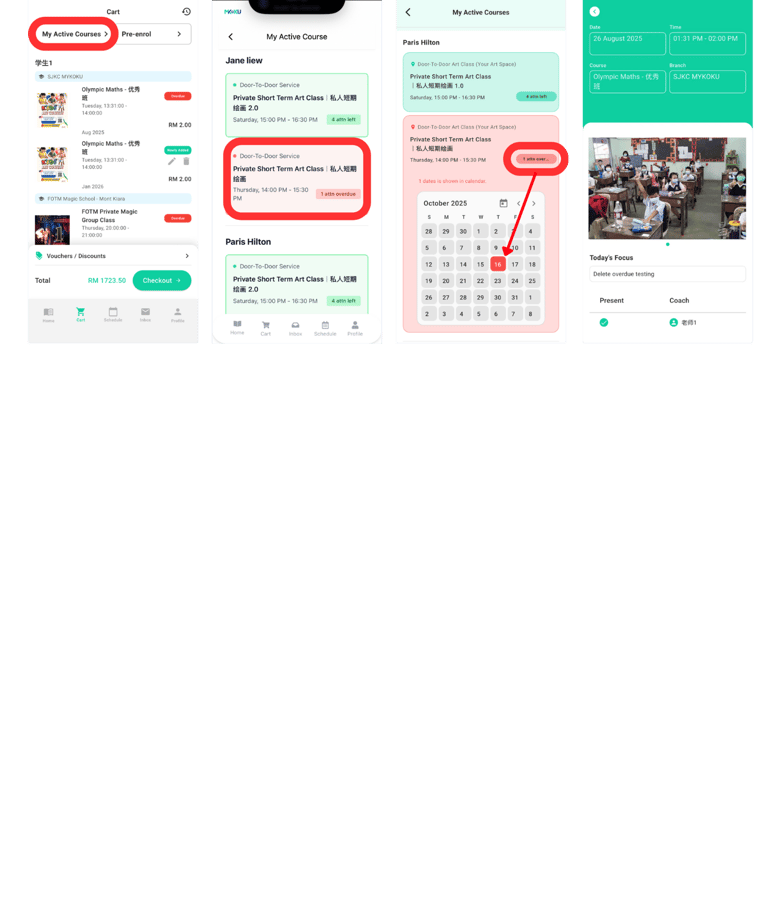
1. Go To the Cart Page & Tap on Active Course.
2. Select the course you want to check
3. View your Credit.
4. View the date Detail.
1
2
3
4
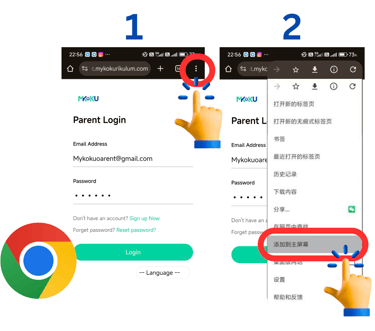
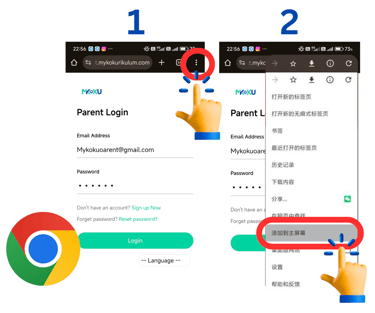
Add to home screen MYKOKU Parent Web
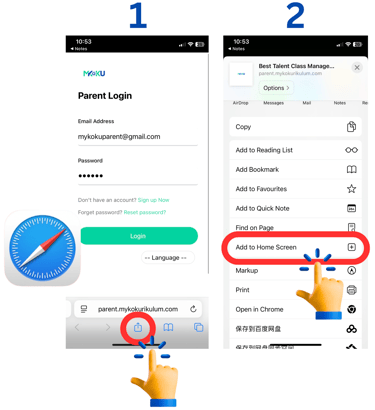
1. Tap on the screen「menu bar」
2. Tap the 「Share Button」 (looks like a square with an arrow pointing up)
3. Scroll down and select 「Add to Home Screen」
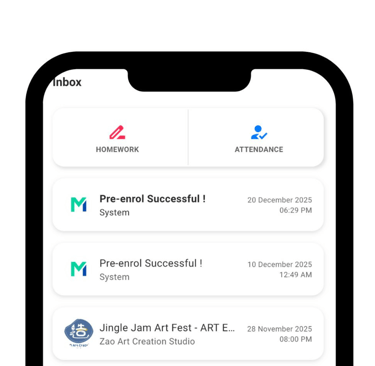
Go to the Inbox page to view the Latest Update
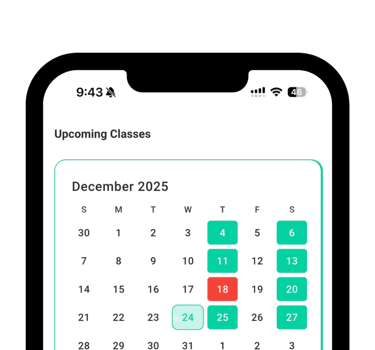
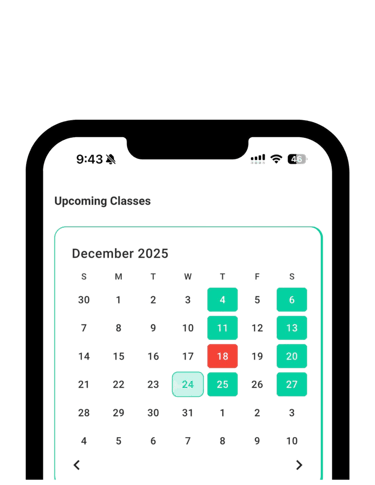
Go to the Schedule page to view children Schedule
MYKOKU
Let us handle the paperwork,
you can focus on students.
Academy Support
Contact
+6011-3777 1413
© 2025. All rights reserved.
+6011-3565 1413
Parent Support